License
AdaOne offers flexible licensing options designed to meet the needs of your operations. Our solutions provide security and reliability ensuring that you get the right fit for your IT environment.
Each AdaOne license is good for one user at a time. If you need simultaneous use, you need additional licenses.
Security
AdaOne is a fully on-premise software solution, designed for maximum security and complete data sovereignty. It runs entirely locally, keeping all data, processes, and intellectual property secure within your infrastructure.
With local validation, AdaOne is trusted by ITAR-compliant and high-security sites worldwide, ensuring seamless and secure deployment under the strictest industry regulations.
Our team can help you find the right licensing option.
License Validation
You can validate your AdaOne license using two methods, depending on your security policies:
- Floating license – Validated online through our secure license server.
- Offline license – Validated via a local file, requiring no internet connection.
Once activated, you can review your license settings in AdaOne by navigating to Top right menu → Settings → License.
To manage your license, go to the license settings page in the AdaOne resource center.
License Types
Floating
The floating license is the most common and convenient option. It requires an internet connection for hourly validation. This license is tied to one account or one computer at a time, and switching between accounts or computers is quick and easy, with just a few manual simple steps.
- Account-based
- Tied to your Windows account (UPN-based).
- Use AdaOne on any computer while signed in, one at a time.
- Transfer your license to another account within the same domain via your profile page.
- Computer-based
- Tied to a specific computer (UUID-based).
- Any account can access AdaOne on the assigned computer, one at a time.
- Transfer to another computer by requesting a disassociation via your profile page.
Offline
The offline license is ideal for environments with no internet connection. It does not require internet access as activation is done via a secure license file (.skm) provided to you, valid for a fixed period. This license is tied to one computer and cannot be transferred during the subscription period.
- Computer-based
- Locked to a single computer (UUID-based).
- Any account can access AdaOne on the assigned computer, one at a time.
- Non-transferable during the subscription period.
Online License Management
You can manage your online license directly via your profile page, and:
- Switch the license type (account-based/computer-based).
- Transfer the license owner. After that, you won't be able to manage the license on your profile page anymore, but it can still be managed on the new owner's profile page.
- Disassociate the license from the current computer (if computer-based) or user account (if account-based).
Frequently asked questions
General Questions
A license is defined by:
- Its duration
- Its association (tied to a specific account or computer) Both must be valid for you to use AdaOne.
If multiple users need AdaOne at the same time, you will need to purchase additional licenses. For each user, select the best activation type (Floating or Offline).
Yes, you can switch from Floating to Offline, but switching from Offline to Floating is not possible during the subscription period.
Yes! You can switch your floating license type directly via your profile page.
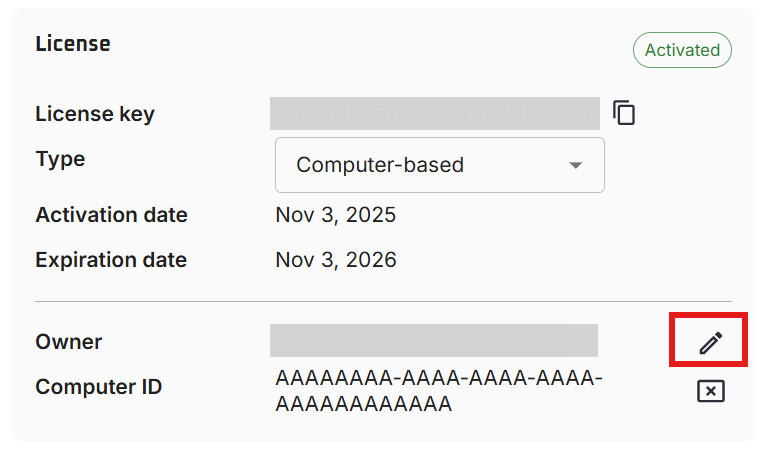
Yes, you can change the license owner of a license via your profile page:
- Click on the edit icon of the Owner:
- Type in the new owner's email address and click confirm:
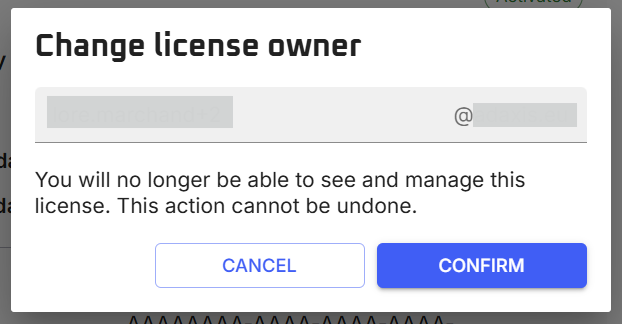
After that, you won't be able to manage the license on your profile page anymore, but it can still be managed on the new owner's profile page.
No problem! Transfer your license to a new account or computer via your profile page.
Reinstalling AdaOne on the same computer does not affect your license. If you’re using a computer-based license and replace hardware, please disassociate your computer via your profile page.
- Open AdaOne on your device. If it works, check Settings → License for more details.
- If you have issues, or are unsure, visit your profile page to see all license information.
- Contact us at license@adaxis.eu if you need any help.
Floating License - Account-Based
When you activate AdaOne, the software will automatically retrieve the User Principal Name (UPN) of the Windows account used on the computer and associate it with your license on our server. There is nothing you need to do. Each time you open AdaOne, the software will verify that the account matches the one linked to your license.
However, your Windows account needs to be linked to Microsoft Entra ID (formerly Azure AD) in order for the software to retrieve the User Principal Name (UPN).
If needed, you can check your Microsoft account compatibility by:
-
Accessing the Entra portal:
- Go to Microsoft Entra ID and try logging in.
- If you can access the portal, your account is Entra ID compatible.
-
Running a command prompt check:
- Open the
Command Promptas an administrator. - Run the command
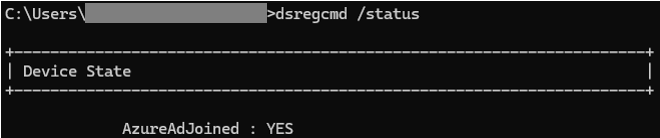
dsregcmd /status. You can read more about it here. - If AzureAdJoined shows YES, your account is properly linked. Else, please refer to the following section How to connect my device to Microsoft Entra ID? for further possible steps.
- Open the
If your device is not linked to your Microsoft Entra ID, you can add a work (or school) account to your device and join it to your Entra ID.
Please speak with your IT department/Admin to check if this is the right step for you, as this means your organization will be able to control your device. You can read more about it here.
- First, you may want to check that you have the possibility to join the Entra ID. To do so, the IT admin can:
- Connect to Microsoft Entra ID;
- Navigate to
Identity > Devices > All devices > Manage > Device settings; - Check the value of the field
Users may join devices to Microsoft Entra.
- To connect your device to the Entra ID, you can:
- Go to
Settings > Accounts > Access work or school;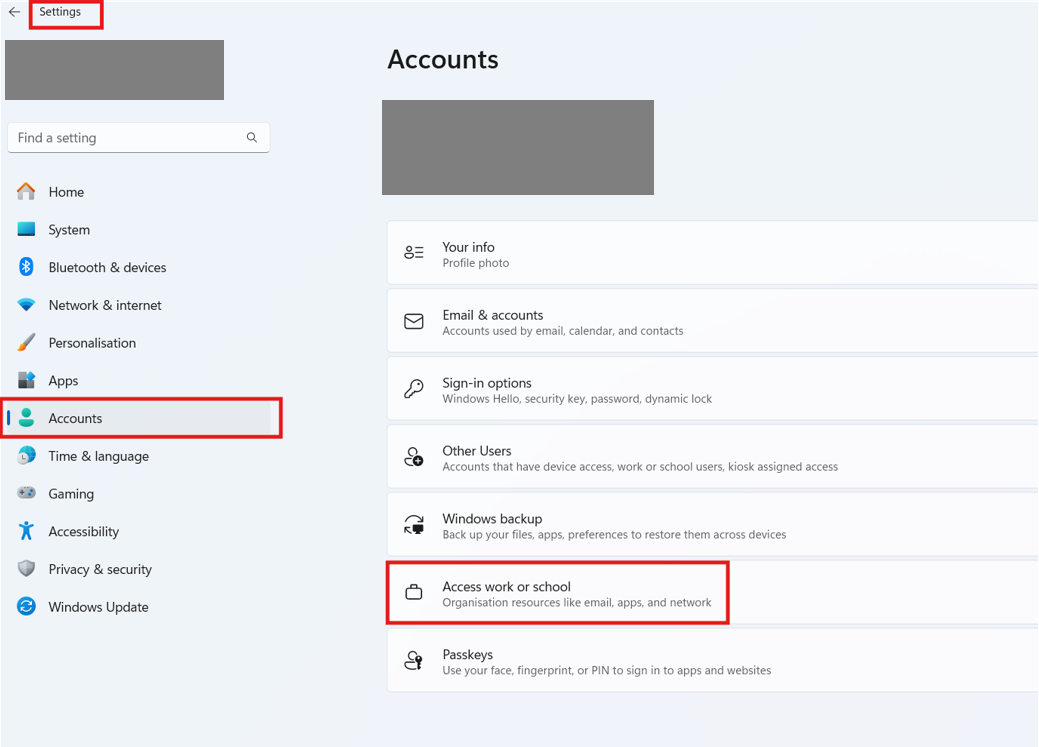
- Select
Add a work or school account > Connect - Select the option
Join this device to Microsoft Entra IDand follow the procedure. - Make sure to use AdaOne on that new account.
- Go to
- Once done, you can check that your device is actively connected to your Entra Id in several ways:
- Via
Settings > Accounts > Access work or school, where you should seeConnected to ____'s Entra ID;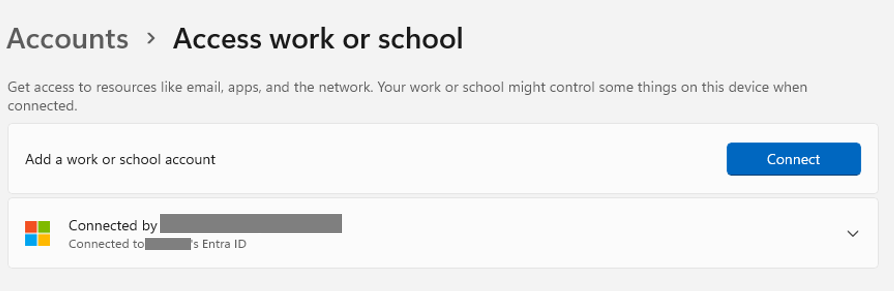
- Via the
Command Promptas an administrator, with the commanddsregcmd/status, where you should seeAzureAdJoined: YES; - Via Microsoft Entra ID
Identity > Devices > All devices, where your device should beMicrosoft Entra joined.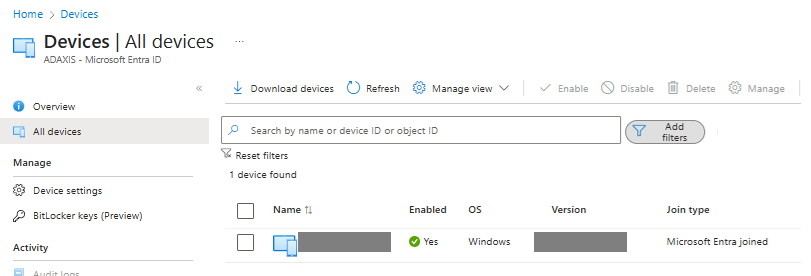
- Via
- Save your work in AdaOne (we recommend using Packs and Shares).
- Close AdaOne to ensure all data is properly stored.
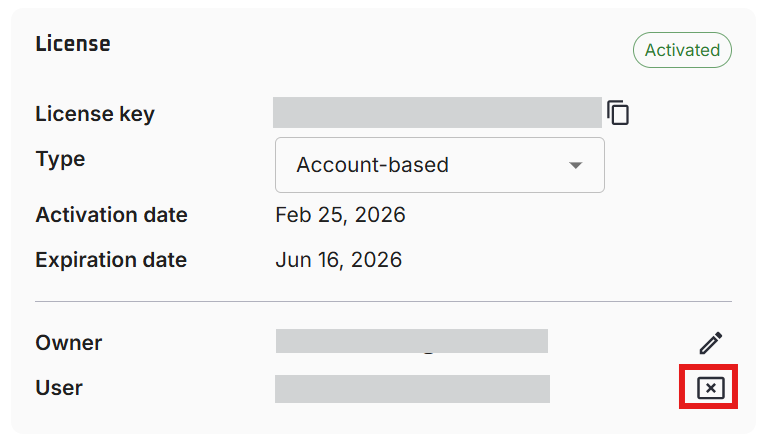
- Request to disassociate your account via your profile page.
- Click on the disassociate icon of the User:
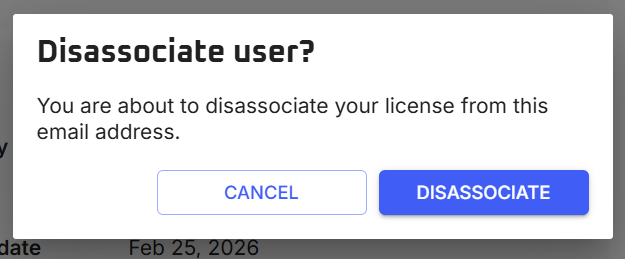
- Click disassociate:
- Your license is ready to be associated again:
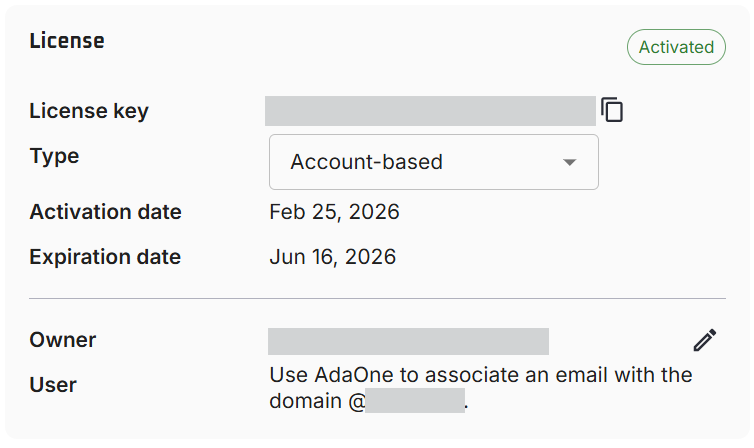
- Click on the disassociate icon of the User:
- Once the transfer is completed, open AdaOne on your new account, and enter your license key—your license is now successfully transferred. The new account must have the same domain as the previous one.
If you run into any issues, please email us at license@adaxis.eu, and we’ll assist you within one business day.
(Note: No need to do anything on the old computer for the transfer itself.)
If you open AdaOne on your old account, you’ll see a message: "This device is not authorized for use with this per user license.". You will no longer be able to use AdaOne with that old account.
Yes! As long as you’re logged in with the same Windows account, AdaOne can be used on any computer—one session at a time.
Floating License - Computer-Based
When you activate AdaOne, the software automatically retrieves your computer's identifier (UUID) and associates it with your license on our server. There’s nothing you need to do. Each time you open AdaOne, the software checks that the computer matches the one linked to your license.
- Save your work in AdaOne (we recommend using Packs and Shares).
- Close AdaOne to ensure all data is properly stored.
- Request to disassociate your machine via your profile page.
- Click on the disassociate icon of the Computer ID:
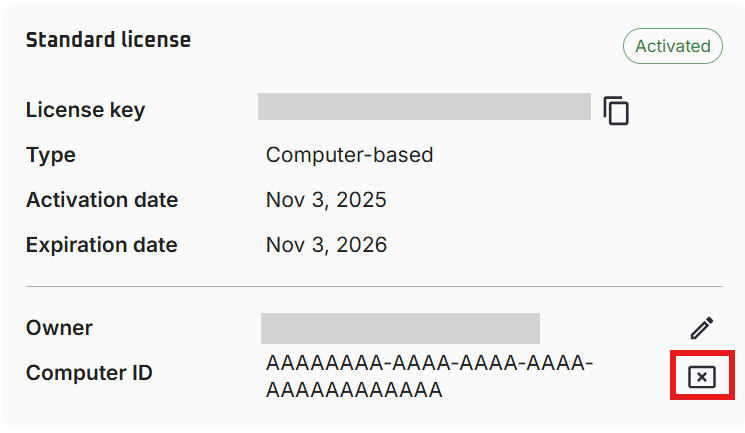
- Click disassociate:
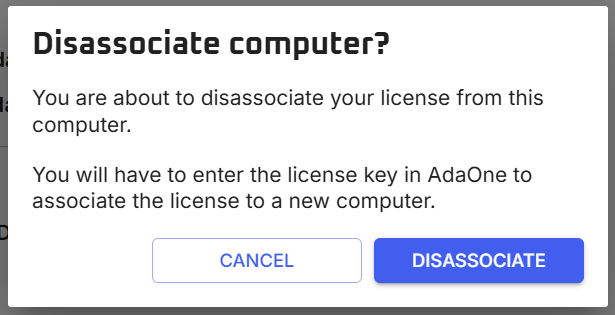
- Your license is ready to be associated again:
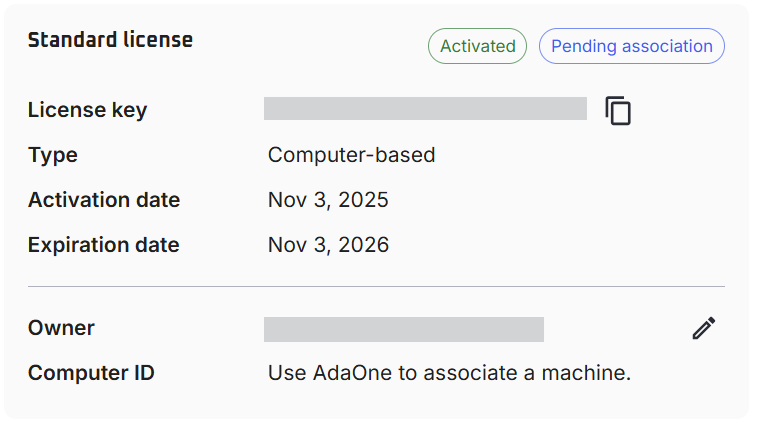
- Click on the disassociate icon of the Computer ID:
- Once the transfer is completed, open AdaOne on your new computer, and enter your license key—your license is now successfully transferred.
If you run into any issues, please email us at license@adaxis.eu, and we’ll assist you within one business day.
-
Run Terminal as admin
-
Copy and paste the following line:
Get-CimInstance -ClassName Win32_ComputerSystemProduct | Select-Object -Property UUID
This should then give you your UUID in the terminal:

IF this does not work, then there is another way using WMIC:
-
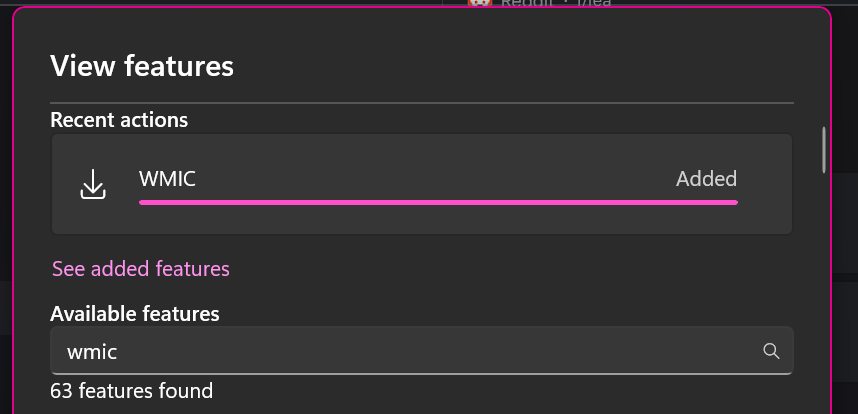
If you do not already have, you will need to install WMIC.
- Go into your Settings > System > Optional Features
- Click on View features
- Type 'WMIC' into the search box and install
-
Run Terminal as admin
-
Copy and paste the following line:
wmic path win32_computersystemproduct get uuid
This should then give you your UUID in the terminal.
You can use this to check whether or not the UUID listed in your profile in the resource center matches the UUID of your computer.
If you open AdaOne on the old computer, you’ll see a message: "Machine disconnected from license." You have two options:
- Confirm the transfer and continue using AdaOne on your new computer.
- Re-link the old computer, but you’ll need to request another remote reset before transferring the license again.
If you frequently switch computers, consider using an Account License, which allows you to use AdaOne on multiple computers—one computer at a time.
Yes! A Computer License is tied to the computer, not individual accounts. Any account on that computer can access AdaOne—one session at a time.
Offline License - Computer-Based
The activation and validation of the Offline License is done through a specific file we provide. To generate this file, we need the identifier (UUID) of the computer you want to link the license to. Once we receive this information, we generate the file that AdaOne will recognize, allowing you to use the software for the designated period.
No, an Offline License is tied to a specific computer and cannot be transferred during the subscription period. It is valid for a fixed duration and is non-transferable.
Need help?
We’re always here to assist! If you have any questions or special requests, contact info@adaxis.eu.