Create a new robot cell
In AdaOne, a Cell contains all equipment, frames, and configuration settings needed to simulate a manufacturing cell. Cells are used to create new Projects which is where the actual tool path generation and programming is done.
It is possible to create highly complex cells with robots, coordinated external axes, and multiple process head. In this guide, we will show you how to create a simple KUKA based robot cell for Wire Arc Additive Manufacturing (WAAM) with a 2-axis positioner.
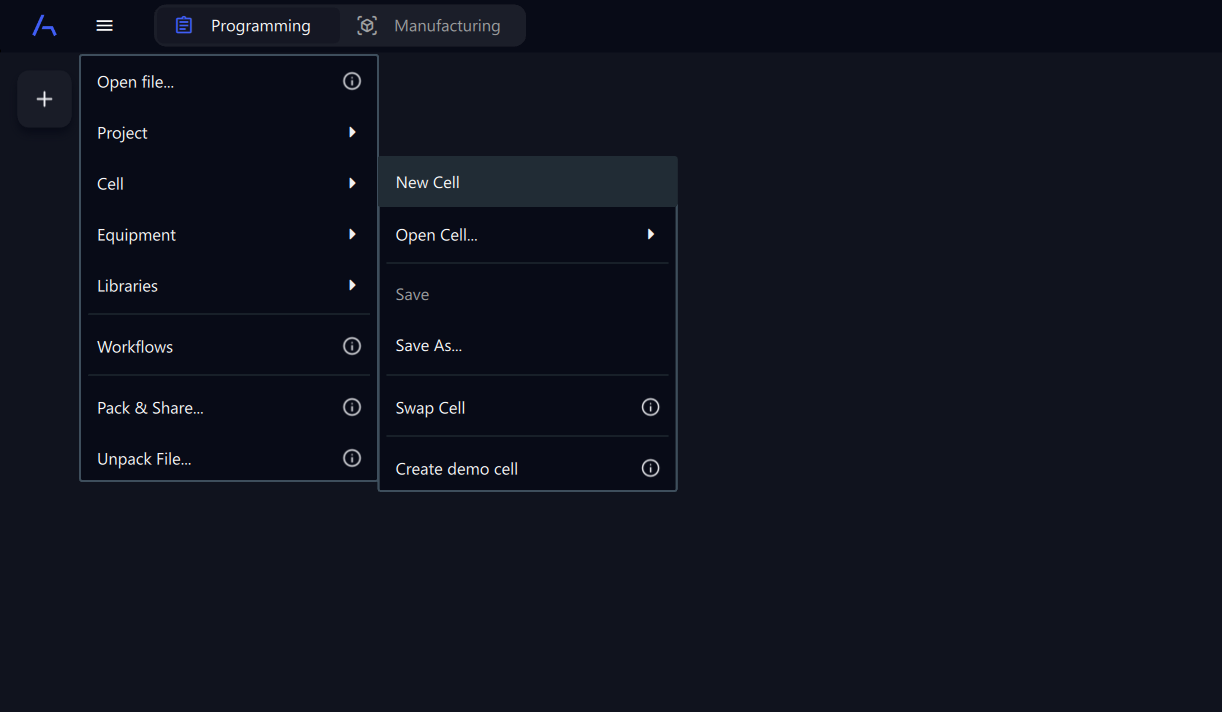
- 1Create an empty cellGo to Main Menu -> Cell -> New Cell to create an empty robot cell. Go to Main Menu -> Cell -> Save As... to save it with your desired name.
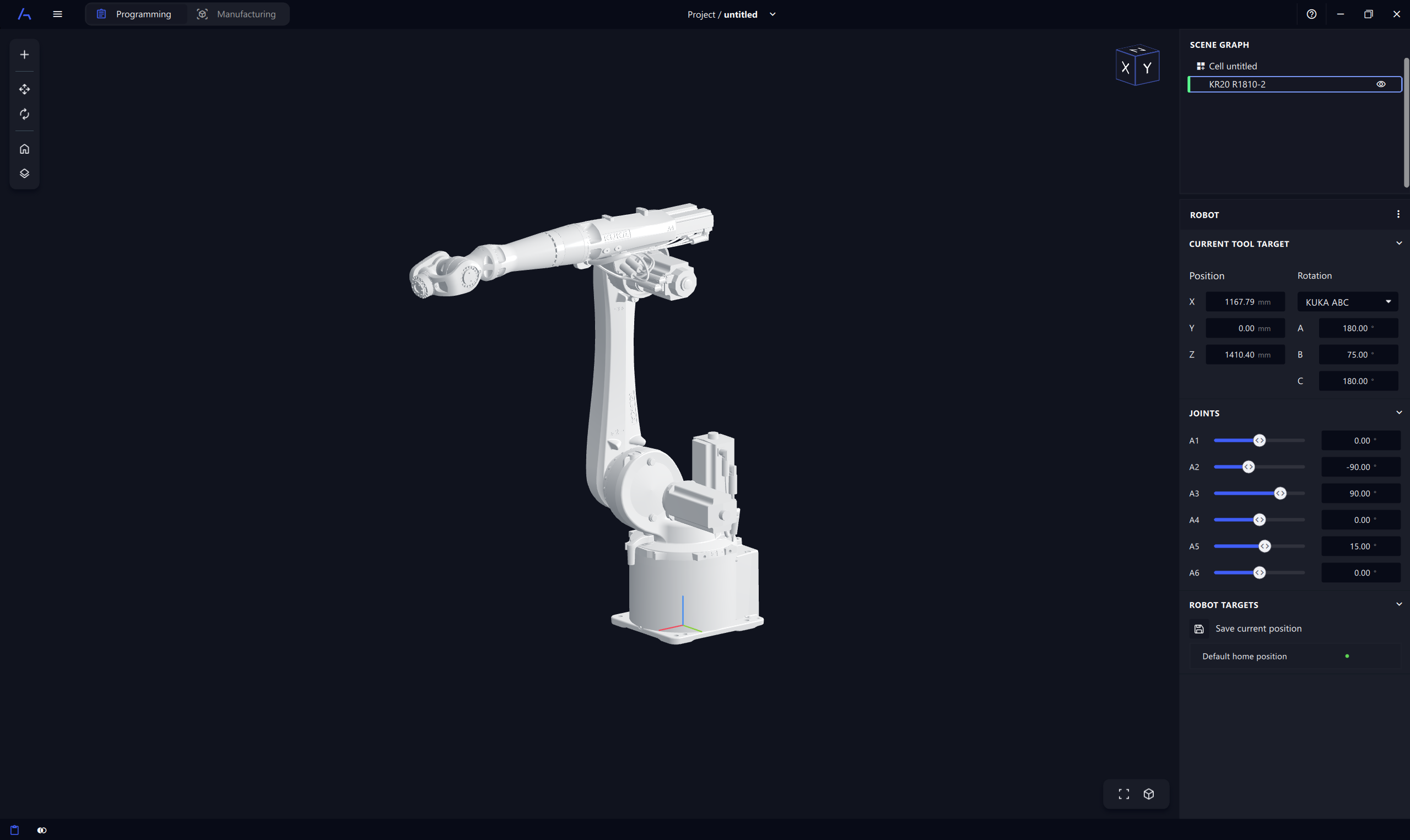
- 2Add an industrial robotGo to Main Menu -> Equipment -> Add Robot and import a KUKA KR20 R1810-2 robot.
- 3Add a pedestal for the robotGo to Main Menu -> Equipment -> Import Cell Element and import the pedestal 3D model from the sample files. Position the robot on the pedestal.
- 4Add and setup the process headGo to Main Menu -> Equipment -> Import Process Head and import the welding torch 3D model from the sample files. Configure the process, tool frame and tool convention.
- 5Add a 2-axis positionerGo to Main Menu -> Equipment -> Add Positioner and import the KUKA KP2-HV500.