Workspace
The aim of AdaOne is to provide an intuitive way to program industrial robots and therefore the workspace puts the emphasis on the 3D environment. The user interface is divided into five regions: three tool bars (top, left and bottom), the 3d scene, and a panel on the right hand side for object properties and options.
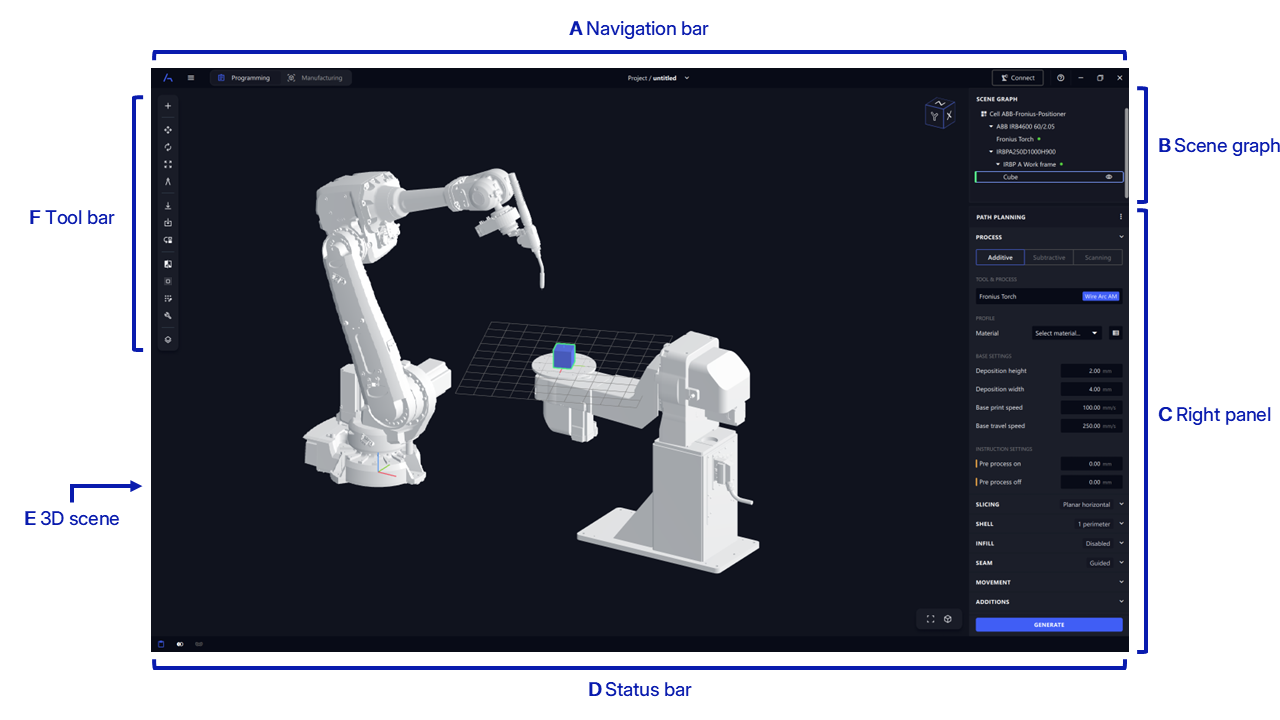
- (A) Navigation bar. The top bar lets the user access the main menu switch between views, e.g. programming and manufacturing.
- (B) Scene graph. The top part of the right panel shows the scene graph with all objects in the current cell.
- (C) Right panel. The bottom part of the right panel shows properties and options for the selected object.
- (D) Status bar. Notifications and global settings for collision decetion and real time path preview.
- (E) 3D scene. The main area of the workspace where the cell is visualized and edited.
- (F) Tool bar. The left bar gives access to import parts and contextual tools to modify selected objects in the 3D scene.
Navigation bar
The navigation bar lets the users access the main menu switch between views, e.g. path planning and manufacturing. Depending on the view chosen, the content of the tool bars and the right panel differs.
Main menu
The three horizontal lines on the left hand side of the navigation bar next to AdaOne logo is the main menu. In this menu it is possible to open and save cells and projects, import scene elements and access libraries for post processors, materials and cutting tools.
Programming view
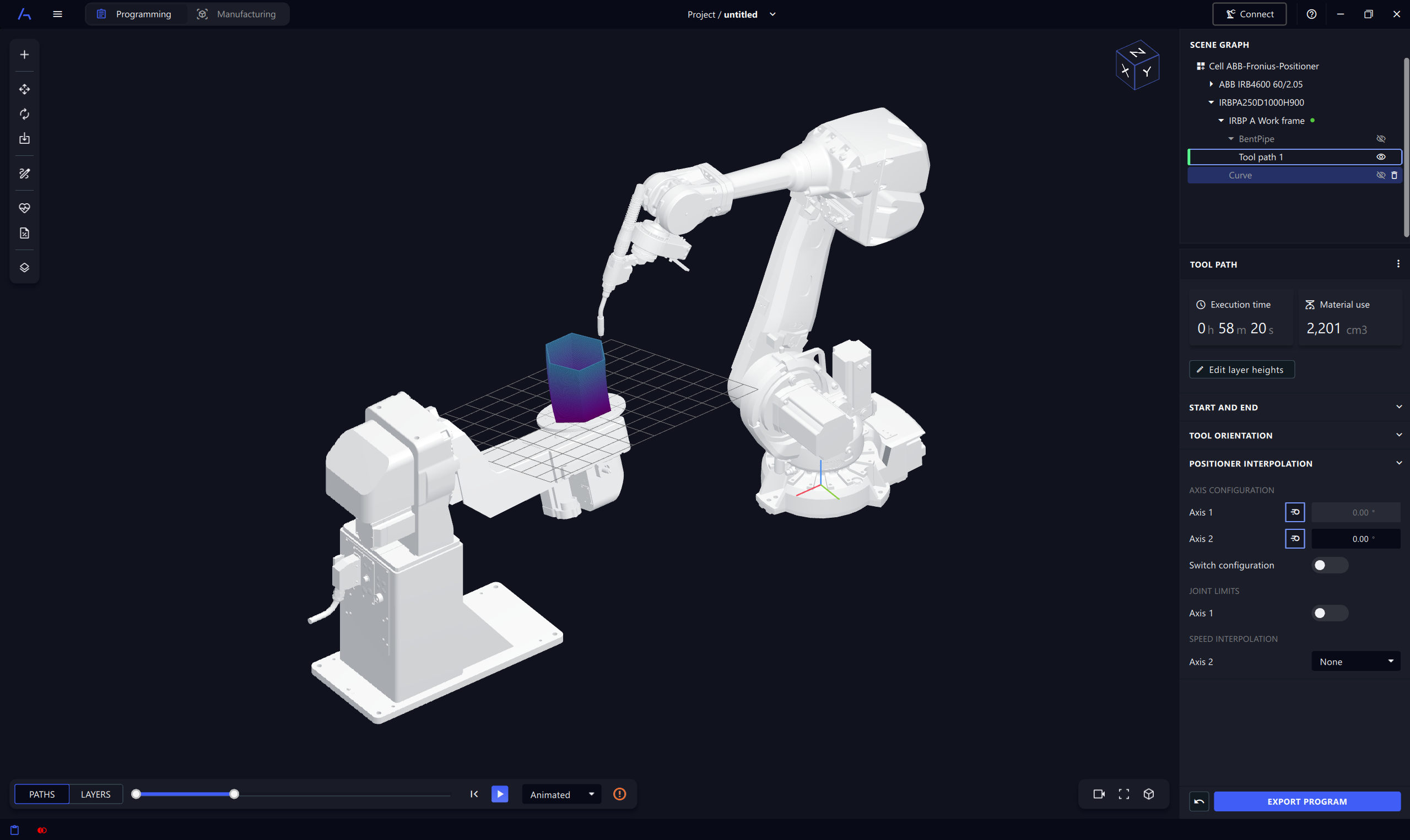
The programming tab is the main view for offline programming and simulation. Here the user can create tool paths for additive manufacturing, scanning and machining operations.
Manufacturing view
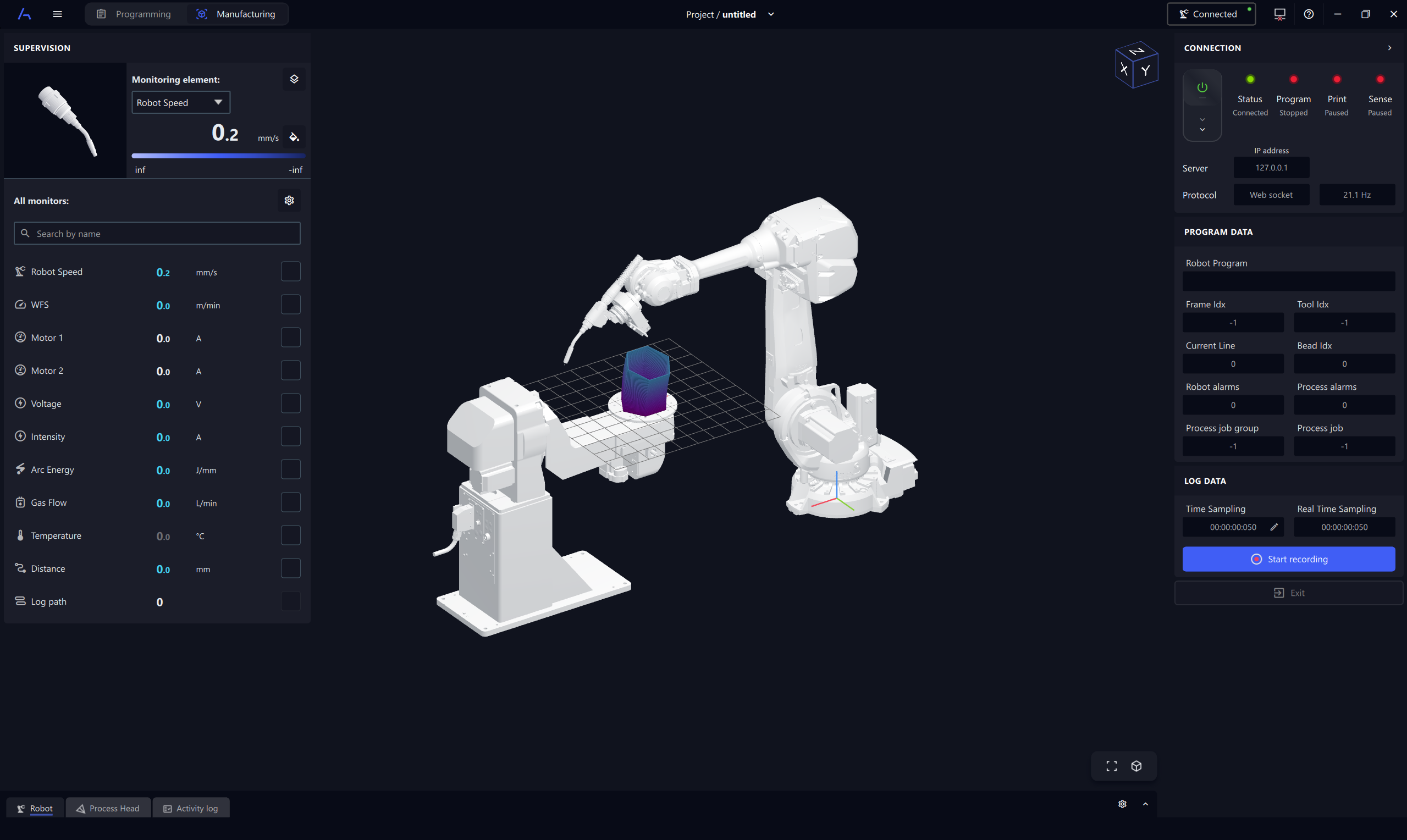
The manufacturing tab allows users to connect to a robot to monitor its behaviour in real-time.
Status bar
The status bar at the bottom of the workspace has three main functions:
- Notifications. The button on the laft hand side opens the notification panel where users can see system messages and warnings.
- Collision detection. The button in the middle toggles collision detection on and off. Right clicking the button opens a menu where users can choose which objects to include in the collision detection.
- Real time path preview. The button on the right hand side toggles real time path preview on and off. When enabled, the tool path is visualized in the 3D scene as soon as path planning settings are modified.
Tool bar
Located on the left side, the tool bar allows the user to import parts and gives access to contextual tools to modify a selected objects in the 3D scene. The available options depend on the type of object selected.